Product spotlight
AI-assisted data room setup
By the CogniSuite team
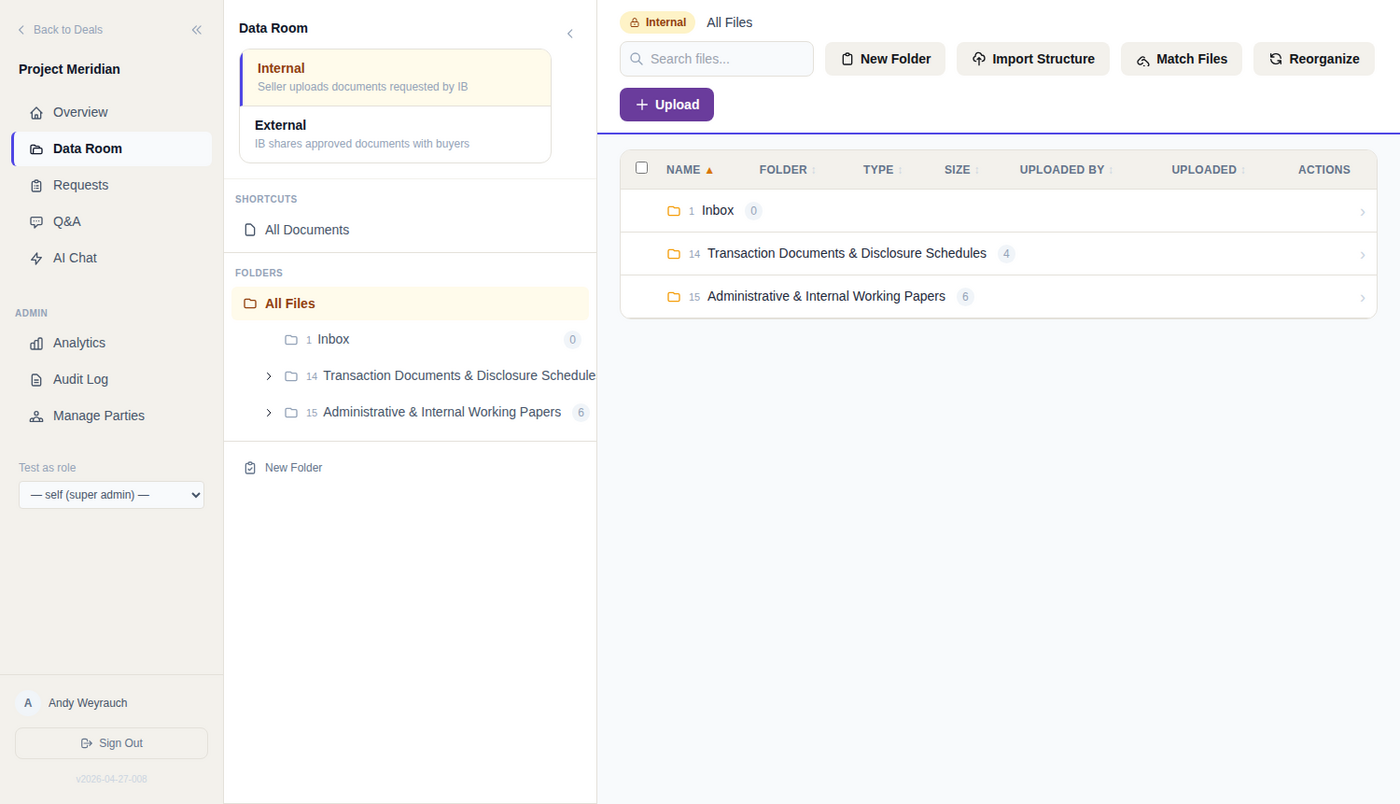
Now live in CogniVault: describe the deal in a sentence and get back a due-diligence request list, a matching folder tree, and a visibility decision already recorded on every folder. Other data rooms start you at an empty tree. CogniVault starts you at a working room where internal material is closed to the other side before the first document lands.
What you get
- Three ways in. Describe the deal in prose, import the request list your firm already uses, or take the standard M&A tree: fourteen top-level categories, around a hundred subfolders, an access tier on every one.
- Nothing bidder-visible by accident. Visibility is written on the folder record itself and fails closed to internal. Leave it blank and the server writes internal.
- Draft first, commit second. Nothing is written to the deal while you edit. You cut, rename and rearrange, then confirm.
- Side-aware from the first click. On a sell-side mandate the buyers are external. On a buy-side mandate the seller is.
The difference
In most rooms, access control is a matrix someone builds by hand after the folders exist, and the folder created next week inherits whatever the ceiling happened to be. In CogniVault the safe answer is the default answer: the folder tree and the file access check run the same resolution code, so the tree cannot show a folder the access check would deny.
Technical view How it works in detail, and where it stops
Three ways to start a deal room
AI-assisted setup hands you a due diligence request list and a matching folder tree before a single document is uploaded, with a visibility decision already recorded on every folder. Internal material is closed to the counterparty from the moment the tree exists.
Pick a starting point:
- Describe the deal in prose. Say what is being sold and which side you act for. You get back categories, topics and requests, and a folder tree built from those categories.
- Start from your own template. Bring a request list your firm already uses and get a matching folder tree proposed.
- Take the standard M&A structure. Hand-authored, no AI, with an access tier already set on every folder.
All three produce a draft: nothing is written to the deal database while you edit.
Why no folder is bidder-visible by accident
Visibility is a property of the folder record, written when the record is written, not applied later by whoever is uploading. Every folder carries one of four labels: internal, external, all buyers, or specific to one named organisation.
Resolution is inherited and fail-closed:
- No label of its own? The system walks up the ancestors and uses the nearest one set.
- Nothing resolves? The answer is internal.
- Left unspecified when you commit? The server writes it as internal. Not the prompt, not a checklist step someone can skip.
The folder tree and the file access check run the same resolution code, so the tree cannot show a folder the access check would deny.
Setup reads the deal type: sell-side the buyers are external, buy-side the seller is. An explicit grant opens one internal folder to a counterparty for a limited disclosure.
Your Excel checklist goes in as it is
No request gets reworded on import, because the model never transcribes. Bring the client's spreadsheet whatever its layout: sparse category rows, categories repeated in every cell, one tab per category, summary tabs to ignore. The model sees the rows and returns a reading plan only:
- Which tabs hold requests, and where each header row sits.
- Which column or pattern supplies each field, chosen from a closed list of allowed modes.
- Its own expected counts, checked against what the import produced.
A malformed plan fails the import with an error rather than an empty list. A valid plan runs mechanically against the raw cells, so a request cannot be paraphrased, merged or invented. Coverage warnings report rows mapped against rows present; anything unplaceable lands in an uncategorised bucket.
The standard M&A structure
Fourteen top-level categories and roughly a hundred subfolders, hand-authored rather than generated: corporate, financials, tax, commercial, legal, IP, people, property, insurance, regulatory and the transaction process.
Every node carries a tier, and the tier sets the visibility the folder is created with:
- Shared folders are created external, visible to counterparty organisations once granted deal access.
- Internal folders are created internal-only.
- Restricted folders are created internal-only and badged as clean team material in the wizard. The badge is a setup-time label, so note which folders carried it.
Two deals started from this tree get the same structure.
Rebuilding a room you already have
Reorganisation rebuilds an ad hoc room against a request list: one folder per category, every document filed into the right one.
- Already linked to a request? Placed by that link, no rescoring.
- Everything else is scored, with a boost when a candidate category matches the folder a person already filed it in.
- Below the threshold goes to a Needs Review folder rather than being stranded.
- Preview first. The dry run scores identically and writes nothing.
- Set access afterwards. New folders inherit none of the old per-folder grants; the interface returns the new folder list so you can narrow them.
Where setup stops
- The generated list is a skeleton. It is capped so it fits one response, well short of the hundred-plus item lists real diligence uses. Use the import or the standard tree for full coverage.
- Restricted folders seed as internal, not clean-team-only. Scoping a folder to a named organisation needs that organisation to exist, and at creation time it does not. Assign the clean team once the party is on the deal.
- Watermarking and view-only are configuration. The default organisation permission allows clean downloads. Set the tiers you want, organisation-wide or per folder; the per-folder setting wins in both directions. See security.
None of this replaces your permission review. What you get is a defensible starting state, with internal material closed by default and nothing open because a field was left blank.
See it on your own deal.
General information, not legal, tax or financial advice. For how CogniVault handles security and access, see Security.